get connected
YMCA Mobile App
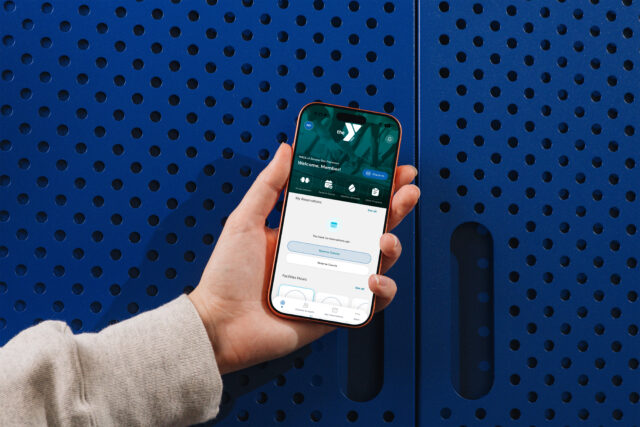
The YMCA of Greater San Francisco mobile app makes it easy to reserve classes, check in with your digital barcode, manage your membership, and stay connected wherever you are.
Everything You Need in the YMCA Mobile App
Whether you’re heading to your favorite fitness class, checking in for a workout, or managing your membership, the YMCA of Greater San Francisco mobile app makes it easy to stay connected wherever you are.
App Features
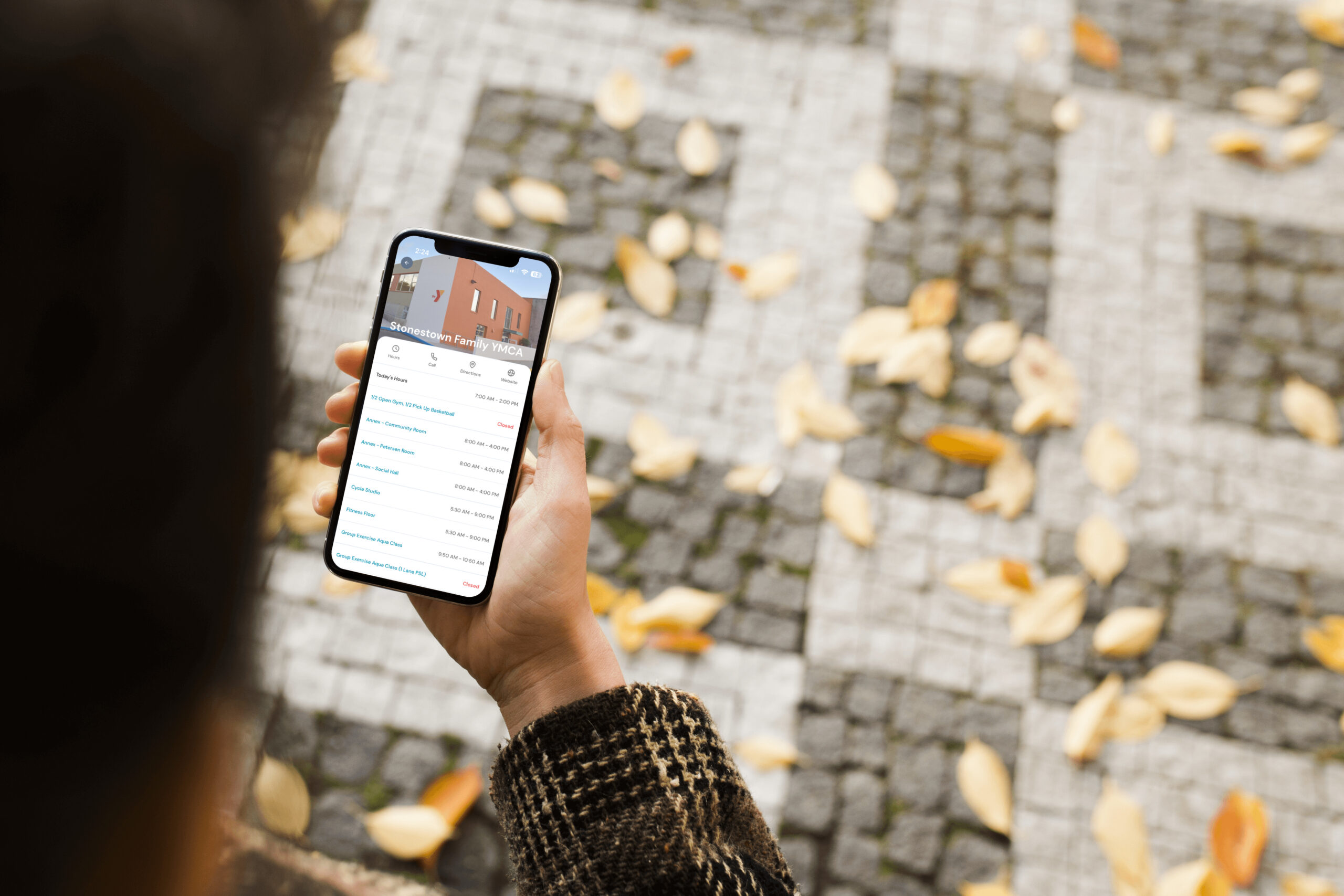
Download our app for mobile check-in, class schedules, reservations, hours and more.
PLAN YOUR VISIT
Reserve classes, browse schedules, and secure your spot before you arrive.
CHECK-IN FASTER
Use your digital membership barcode for quick and convenient entry at participating YMCA locations.
STAY CONNECTED
Access your membership information, receive important updates, and manage your account—all from your phone.
ENJOY A BETTER EXPERIENCE
Sign in securely with Face ID or Touch ID and navigate an intuitive app designed to help you get where you’re going faster.
CELEBRATE YOUR PROGRESS
Earn achievement badges as you reach milestones and stay motivated on your wellness journey.
FREQUENTLY ASKED QUESTIONS (FAQ)
- Open the Google Play Store or Apple App Store on your mobile device.
- Type in ‘YMCA of Greater San Francisco’ in the search bar.
- Click the download button to install the app onto your device.
- Exit the app store and wait for the download to finish.
- Open the app and enter the email address associated with your membership account. (If you get an “invalid email” pop-up or doesn’t remember which email is associated with your membership account, a membership associate at your branch can assist you.)
- You’ll receive an email with a pin number – check your spam folder if you do not receive the email within a few minutes.
- Go back to the app and enter the pin number and create a password. (This same email and password combination can be used for the app and web-based reservation systems.)
- Enter your email associated with your membership account on the login screen.
- Click “Forgot Password.”
- You’ll receive an email with a pin number. Check your spam folder if you do not receive the email within a few minutes.
- Follow the link in the email and enter a new password and the pin number.
- Return to the app or reservation page and login with your new password.
New Password Requirements: Password must be at least 8 characters long and must contain at least one uppercase letter, one lowercase letter, one number, and one special character. If your previous password does not meet these requirements you will be prompted to change your password.
App Update Alerts
Using the most up-to-date version of the app ensures you get access to all the latest features as well as improvements and fixes.
Facility Notices
Receive notifications when your facility is closed or has different hours for maintenance, weather, holidays, special events, etc.
Reservation & Appointment Reminders
Get reminders about upcoming class, courts, and facility reservations as well as personal training appointments and more. You may also receive notifications about cancellations, location changes, etc.
Note: General push notifications for your facility are also visible in the alerts section of the app. You will always receive app alerts. Push notifications must be turned on and accepted (see below).
You will be prompted to allow push notifications the first time you launch the app. If you selected “don’t allow,” you may turn them on at any time in your device’s settings.
- Go to the device’s “Settings.”
- Click “Notifications.”
- Scroll down and click on the app.
- Swipe “Allow Notifications” on.
- Click the schedule icon in the footer (second icon from the left). The schedule is also available from the hamburger menu on the top left. Your app may also have a schedule icon at the top of the homepage.
- Select your location (if applicable) in the drop-down menu on the top right.
- Select preferred date. You’ll see a list of all classes on that date.
- Scroll through the list of classes on that day. You may also sort by class name, time or instructor in the search bar. The search will only show results for the date you have selected.
- Click on the class to see full class details.
- Click the schedule icon in the footer (second icon from the left). The schedule is also available from the hamburger menu on the top left. Your app may also have a schedule icon at the top of the homepage.
- Select your location (if applicable) in the drop-down menu on the top right.
- Select preferred date. You’ll see a list of all classes on that date.
- Scroll through the list of classes on that day to find your class. You may also sort by class name, time or instructor in the search bar. The search will only show results for the date you have selected.
- Click “Reserve.” The app shows how many spots are available. The “Reserve” button is also visible if you click on the class for full class details.
- If you have a household membership, select the member from your household who the reservation is for and complete the reservation.
Please note: Presidio Tennis Membership is required to reserve tennis courts.
- Select “Reserve Courts” from the app homepage.
- Select location (Presidio for Tennis Courts, Marin for Racquetball courts) in the drop-down menu on the top right.
- Select your preferred date.
- Find the court you would like to reserve.
- Select the start time and duration. Please note – only available start times will be shown in the list of available times. Make sure you account for the duration of your reservation when selecting a start time. Example: if 12:00 p.m. doesn’t show as available in the list of times to reserve then the court is reserved at that time so if you’d need to consider the duration and start time to book the slot before 12:00 p.m. i.e. 60 minutes would need to start at 11:00 a.m., 90 minutes at 10:30 a.m., etc.
- Click “Reserve.”
- Click “Accept.”
- If you have a household membership, select the member from your household who the reservation is for and complete the reservation.
- Click the “My Reservations” icon in the footer of the app. Your upcoming reservations are also visible on the homepage.
- Find the class or equipment and click “cancel.”
- Click “Yes, cancel reservation” to confirm your cancellation.
- You’ll see a pop-up confirming your cancellation with an option to make another reservation. Cancelling your reservation automatically opens a spot for another member.
- Open the YMCA of Greater San Francisco app.
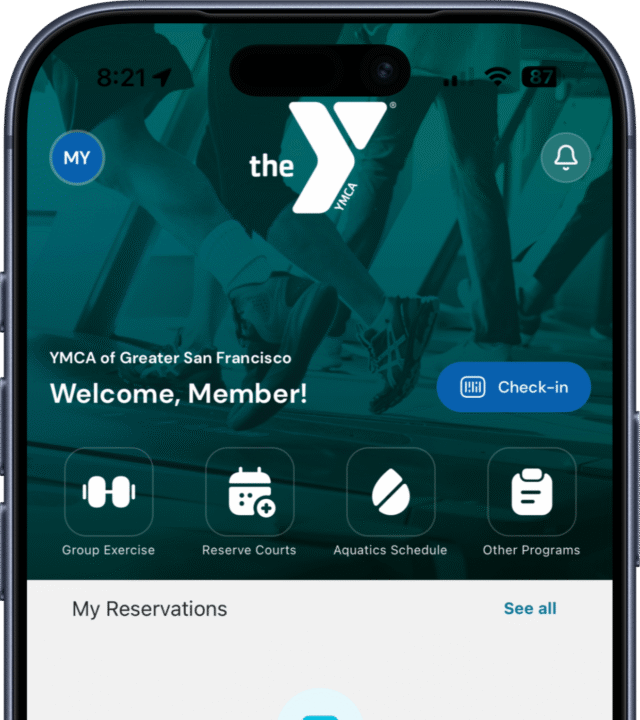
- Click on the “Check In” button in the middle of the screen.
- If you have a household membership, you can swipe to view other family member barcodes for checking in.
Achievement badges are fun rewards you earn for reaching milestones, trying new activities, attending classes regularly, and more. Check your profile to see what badges you’ve earned and what you can earn next!
You can earn badges for things like attending your first class, reaching 10 classes, and many more milestones. New badges are added regularly!
You can still book classes and manage your reservations through our website on any computer or tablet browser. However, the mobile app provides the most convenient experience.
To take these actions on the website, follow these steps:
- Visit the Schedules page
- Click “Login to Make Reservations” on the top right of the schedules page.
- Enter the email address associated with your membership account. (If you get an “invalid email” pop-up or doesn’t remember which email is associated with your membership account, a membership associate at your branch can assist you.)
- If you have already set up password for the app, use the same password here. If not, you’ll receive an email with a pin number – check your spam folder if you do not receive the email within a few minutes.
- Return to the schedule page and enter the pin number provided and create a password.
Additional FREQUENTLY ASKED QUESTIONS
On July 1, 2026, an updated mobile app will be available for all members. These questions are related to those who have previous versions currently installed on their devices.
Yes. Existing app users will need to install the new app and sign in using their current account credentials.
No. Simply log in using the same email address and password you currently use for your YMCA account.
There is a new password requirement so you might. All passwords must be at least 8 characters long and must contain at least one uppercase letter, one lowercase letter, one number, and one special character.
If your previous password does not meet these requirements you will be prompted to change your password.
Yes! All your account information class history, and upcoming reservations automatically transfer when you log in to the updated app.
No. All your current and future reservations will appear in the new app as soon as you log in.
Yes. Your complete class and activity history will be available in the new app.
First, confirm you’re logged into the correct account. If your reservations still don’t appear, log out and log back in. If the issue persists, contact our front desk immediately